 Audio Flashcards
 Peter from Audio Flashcards · 27 October 2026
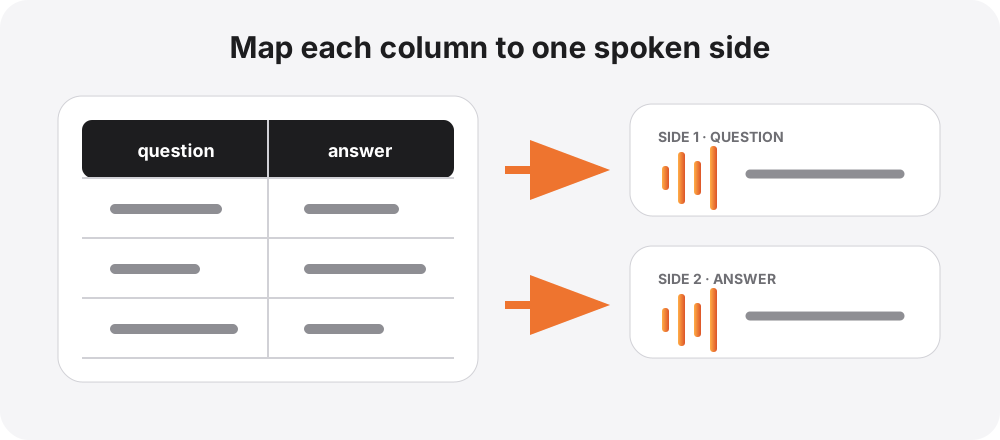
A spreadsheet is the quickest way to create a large set of spoken cards from existing notes. Each row becomes a card, and each selected column becomes a side. Audio Flashcards generates speech for those sides using the voices you choose.
The import is predictable when the file is simple: one card per row, one side per column, and a header row naming the columns.
Arrange the spreadsheet
A two-sided vocabulary file might look like this:
Spanish,English
la ventana,the window
el puente,the bridge
la llave,the key
The first column can become side one and the second column side two. A third column could become an example sentence, a card title, or be skipped.
Keep each cell focused. Several questions separated by line breaks still become one side and one scheduling decision. If the facts should be remembered independently, put them on separate rows.
Export as CSV
Save or export the sheet as a CSV file. UTF-8 is the safest encoding for accents and non-Latin scripts. Comma-separated files are common, but the importer can also review other separators when a file uses semicolons, tabs, or another delimiter.
Before importing a large deck, open the file in a plain-text editor and check a few rows. Quoted cells may contain commas; a correctly exported CSV keeps those cells together.
Review the detected structure
In Audio Flashcards, choose + > Import… > Import CSV and select the file. The review screen shows how the app interpreted it.
For each column, choose a role:
- a card side to be spoken;
- Title to name the card; or
- Skip to leave the column out.
Tell the importer whether the first row contains headers. Check the separator and text encoding if the preview has merged columns or broken characters.
The complete controls are documented in Import Cards from CSV and Audio Files.
Choose a voice for every side
Each spoken column needs a voice. A language-learning deck might use a Spanish voice for side one and an English voice for side two. A question-and-answer deck in one language can use the same voice on both sides.
Available sources include system voices, on-device Kokoro voices, and cloud voices configured with your own provider account. Generate a few sample sides before beginning a large import: pronunciation and pace matter more when they will be repeated hundreds of times.
See Set Up Text-to-Speech Voices for voice installation, defaults, and provider details.
Resolve warnings before importing
The importer groups rows needing attention. Common cases include:
- a blank cell in a required side;
- a row with more or fewer columns than expected;
- a header imported as a card;
- characters decoded with the wrong encoding; and
- a voice that cannot generate one of the sides.
Decide whether a card with a blank side should be kept with fewer sides or skipped. Fixing the source sheet is often faster than repairing many cards after import.
Allow time for audio generation
Every selected cell has to become an audio file. A large deck therefore takes longer than importing text alone. The estimate in the app is based on the selected voices.
On Android and supported iOS versions, the import can continue in the background and report progress through a notification or Live Activity. On older systems, keep the app open until it finishes. If the import appears stuck, the checks in Troubleshooting cover the usual causes.
Review a sample before building more
Open three or four imported cards and listen in both directions. Check that:
- every column became the intended side;
- the language and pronunciation are correct;
- header rows were excluded;
- card titles are useful; and
- the wording is understandable without seeing the spreadsheet.
Then run a short review. Bulk creation is only successful when the resulting cards work by ear. Writing Good Cards is a useful final check before importing the rest of a large library.