 Audio Flashcards
 Peter from Audio Flashcards · 27 October 2026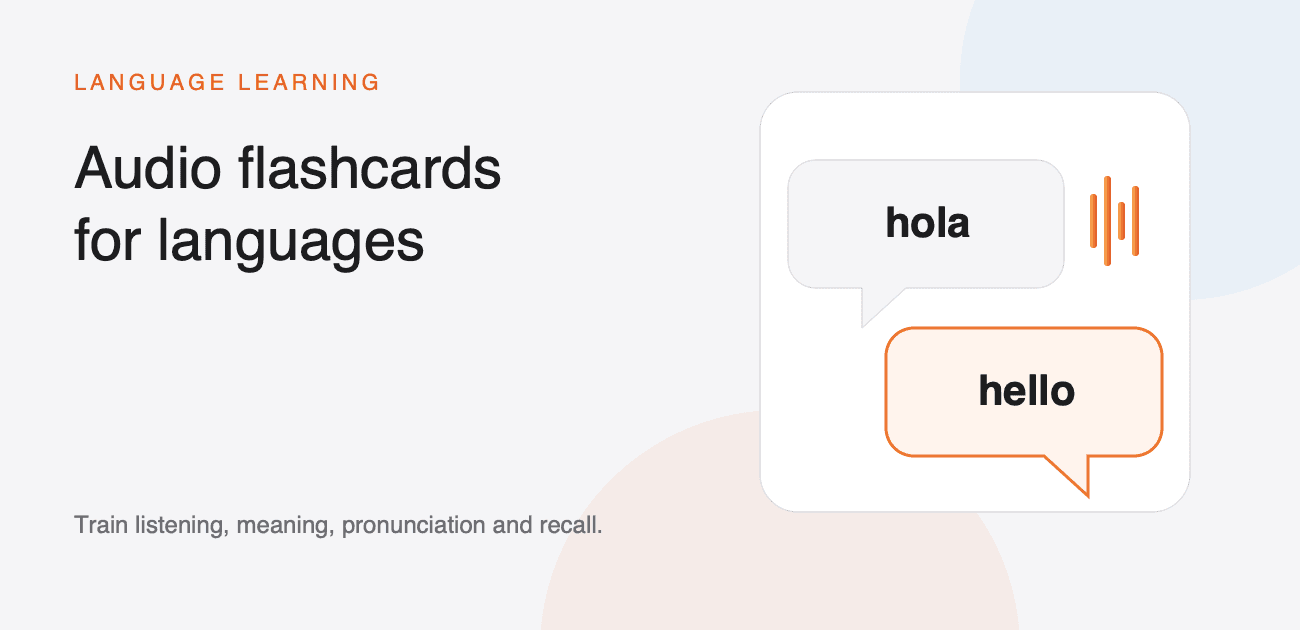
Language is heard before it is analysed. An audio flashcard lets you practise recognising a word or sentence as sound, retrieving its meaning, and producing an answer without relying on the written form.
That does not make text unimportant. Spelling and scripts still need visual study. Audio cards add a separate skill: understanding what reaches your ears at ordinary speed.
Decide what the card should test
One vocabulary item can support several different cards:
- hear the new word, then recall its meaning;
- hear the meaning, then say the new word;
- hear a sentence, then explain its meaning;
- hear a sentence with a missing word, then supply it; or
- hear your own pronunciation, then compare it with a model.
Do not make one card test all of those at once. A focused prompt makes it clear what a failed review means.
Record or generate the voice
Recording your own voice is useful when the wording is personal, the phrase is part of a lesson, or you want to rehearse your own delivery. A fluent teacher or language partner can also record material for you.
Text-to-speech is faster when you have many written cards. System voices are already available on the device. On-device Kokoro voices can sound more natural while continuing to work offline after their model is downloaded. Amazon Polly and OpenAI voices are available with your own account.
Voices & Text-to-Speech explains how to add voices and assign a default voice to each side of a new card.
Write for the ear
A sentence that looks clear on a page can become confusing when heard once. Keep the first cards short and remove clues that only work visually.
- Introduce one new idea at a time.
- Avoid lists with several equally plausible answers.
- Include enough context to distinguish similar words.
- Say punctuation only when it matters.
- Test every generated side before importing hundreds more.
If a voice pronounces a name, acronym, or foreign word incorrectly, try a phonetic respelling or record that side. Support varies between voice providers; Pronunciation & SSML explains the available options.
Use folder languages
Each folder can record the languages expected on its card sides. Those settings help speech recognition choose what to listen for when transcribing your recordings. Transcripts make recordings searchable and allow words to be highlighted as the audio plays.
The transcript is a useful visual aid, but it does not need to appear during a hands-free review. Search & Transcription covers Apple Speech, on-device Whisper, and whole-library transcription.
Review in both directions
Recognition and production are different tasks. Hearing la ventana and knowing it means the window does not guarantee you can produce la ventana from the English prompt.
Make separate cards or use a reversed session when both directions matter. Keep their grades separate if one direction is consistently harder. Review Sessions explains side order and saved session settings.
Add sentences after the word is familiar
Single words are efficient at the beginning, but sentences show pronunciation, grammar, and meaning in context. Once a word is recognisable, add a short example that would make sense in real conversation.
For example:
- Question: “What does la ventana mean?” Answer: “The window.”
- Question: “Close the window, in Spanish.” Answer: “Cierra la ventana.”
- Question: “Cierra la ventana.” Answer: “Close the window.”
Those are three separate recall tasks, even though they share the same word.
Make listening part of the week
Use graded reviews when you can pay attention and answer. Use an optional passive listening session for extra exposure when you cannot grade every card. Voice commands can keep a focused session hands-free, while headphone and Lock Screen controls provide a quieter alternative.
Start with ten useful phrases rather than an entire dictionary. Review them, rewrite anything that sounds unnatural, and then import larger sets once the pattern works. Import Cards from CSV and Audio Files covers the bulk workflow.