 Audio Flashcards
 Peter from Audio Flashcards · 31 October 2026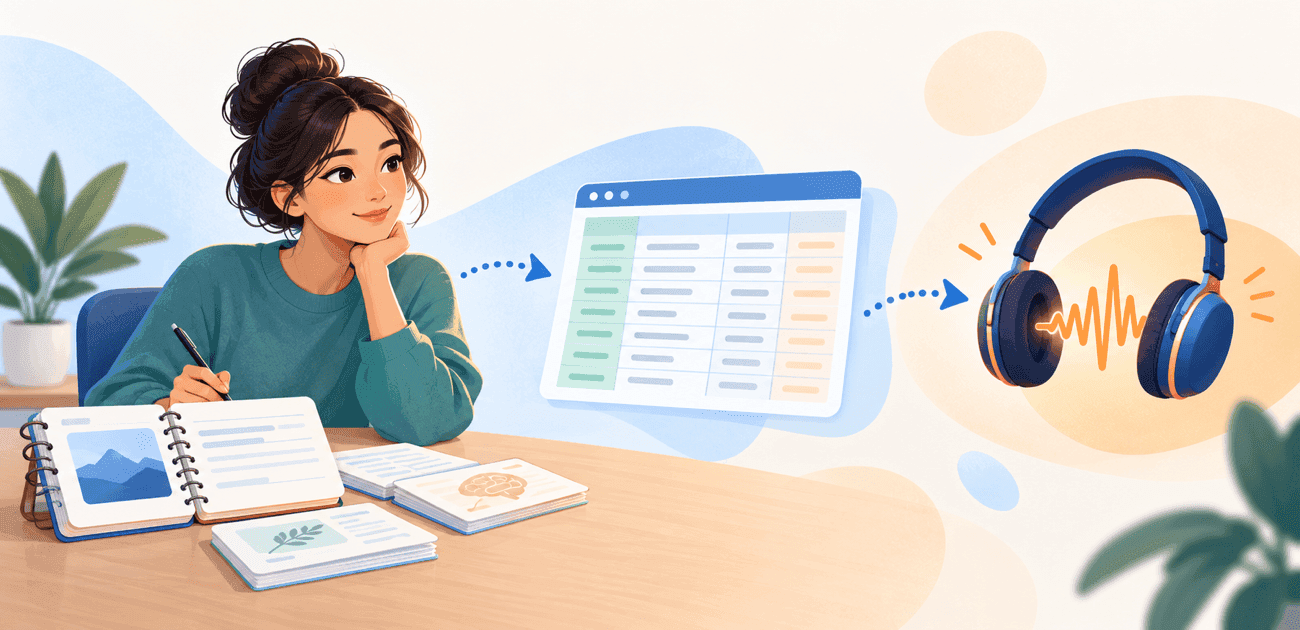
You have gathered your notes, explored the topic and created a set of flashcards. Now take those questions with you on your next walk, train journey or break from the screen.
Export your NotebookLM flashcards as a CSV, import them into Audio Flashcards, and turn them into spoken questions and answers. Hear a question, take a moment to recall the answer, then listen and check how you did.
NotebookLM is now called Gemini Notebook, so you may see that name in Google's interface. Its Flashcards feature supports CSV downloads. Audio Flashcards uses the text in those rows to generate a deck you can study by ear. About Google's name change.
Give your study material a place in your day
Use your notebook to explore a subject and prepare questions from your sources. Bring those questions into Audio Flashcards when you want a spoken review.
A language lesson can become a set of phrases to practise aloud. Course notes can become short questions for an exam. A topic you have been reading about can become a few explanations you want to remember.
With autoplay and voice commands, your review can continue while your phone stays in your pocket. Set the pause before each answer, attempt it in your head or aloud, then say how well you remembered it.
The CSV provides the card text. Audio Flashcards creates the speech and uses your grades to schedule future reviews.
1. Create flashcards from a focused set of sources
Open your notebook in a web browser. Add the material you want to study, such as course PDFs, Google Docs or your own notes. Google supports these source formats.
Start with a specific topic: one lesson, a chapter or a group of concepts you want to recall. A focused first deck is easier to check and try.
In the Studio panel, select Flashcards. To guide the result, use the pencil icon to customise the deck before generating it. You can specify the topic, audience, difficulty and style.
For a deck you plan to hear, try this prompt:
Create a focused set of flashcards about [topic] for [audience],
using only the selected sources.

Write each card for someone who will hear it without seeing a screen.

Ask one clear question per card.
Make every question understandable on its own.
Keep answers concise while preserving important conditions and meaning.
Split questions that ask for several unrelated facts.
Avoid references such as "the diagram above" or "the previous card".
Use wording that sounds natural when read aloud.
Do not add facts that are unsupported by the sources.
Review the generated cards against your material. Check definitions, numbers and important qualifications. If the deck needs a different focus, adjust the prompt and regenerate it. You can also edit the text in a spreadsheet after exporting.
Google's flashcard instructions cover generation and customisation.
2. Download the flashcards as a CSV
Open the generated flashcard deck and use its download control to save a CSV file.
CSV is a simple table format. Each row holds a card, with the question and answer in separate columns. You can pass the downloaded file to Audio Flashcards, or open it in a spreadsheet first to refine the wording.
For example, a small language deck could look like this:
Question,Answer
"How do you say good morning in German?","Guten Morgen."
"How do you say thank you in German?","Danke."
"How do you say see you tomorrow in German?","Bis morgen."
This is an illustrative layout. Use the import preview to identify the question and answer columns in your actual export.
If you edit the file in a spreadsheet, save or download it again as CSV. Keep accents and other language characters intact. The CSV guide explains encoding and formatting in more detail.
3. Import the file into Audio Flashcards
Open the destination folder in Audio Flashcards, then choose:
+ → Import… → Import CSV → Choose File
Select the CSV you downloaded. In the preview, assign the question column to the first spoken side and the answer column to the second.
If the file has a header row, enable Header Row so its labels are excluded from the cards. Extra columns can become a card title or be skipped.
- Question or prompt: use it as the first spoken side.
- Answer or response: use it as the second spoken side.
- Optional card name: use it as the title.
- Other information you do not want read aloud: skip the column.
Keep a copy of any useful source references for checking the material later. Preview the first few rows before continuing.
The import documentation explains column roles, file selection and preview controls.
4. Choose voices and generate your audio
Choose a voice for each spoken column. For questions and answers in one language, you can use the same voice throughout. For the German example above, choose an English voice for the questions and a German voice for the answers.
Preview pronunciation and pace before importing the full deck. Names, abbreviations and specialist terms are worth listening to carefully.
Audio Flashcards offers installed system voices, downloadable Kokoro voices that run on your device, and optional Amazon Polly and OpenAI voices using your own provider account. Any cloud-provider charges are billed separately. See text-to-speech options.
Tap Import to generate the audio. When it finishes, open the new folder and listen to a few complete cards.
Your study questions are now a spoken deck, ready for a review.
5. Start a review with your phone put away
Choose your new collection and turn on autoplay. Set an answer delay that gives you enough time to think, then enable voice commands if you want to grade without touching the screen.
Your session follows a simple rhythm:
-
Hear the question.
-
Try to recall the answer.
-
Hear the answer and compare it with yours.
-
Say Again, Hard, Good or Easy.
-
Continue to the next card.
You decide whether your answer was correct. The spoken grade records your assessment.
Audio Flashcards uses FSRS spaced repetition to schedule graded cards for later review. You can also save a practice session that leaves your review history unchanged. Read more about review sessions, voice commands and scheduling.
Once the audio is downloaded to your device, you can review it offline. Offline voice commands depend on the recognition language and device.
Make the cards clear when heard
Before making a large deck, try a short session with the screen out of sight.
Listen for questions that need more context, answers that run too long, or wording that gives the answer away. Rewrite those cards while the problem is fresh.
For a language deck, check that every side uses an appropriate voice. For an exam deck, decide what a complete answer should contain so you can grade consistently.
Start with a small set you actually want to review. Expand it once the wording, voices and pace work for you. The guide to writing good cards has more examples.
A few useful details before you begin
The import creates a separate deck. The CSV transfers text into Audio Flashcards; it does not set up a live connection to your notebook. If your source material changes, check which cards need updating.
Use the web version for the export steps above. The mobile app also supports flashcards, but available controls can differ. Google's mobile help describes the supported features.
Some sources can restrict downloads. Google notes that publisher restrictions on Play Books sources may prevent downloading generated material. See its flashcard export guidance.
Take your next deck on a walk
Choose a topic you want to remember, generate a focused set of flashcards and export the CSV. Import it into Audio Flashcards, choose your voices and try one short review.
Your notebook gives you material to work with. Audio Flashcards gives those questions a place in your daily routine.
Get Audio Flashcards and turn your next CSV into a study session you can hear.
For the full import walkthrough, see How to turn a CSV into audio flashcards.